
Contents
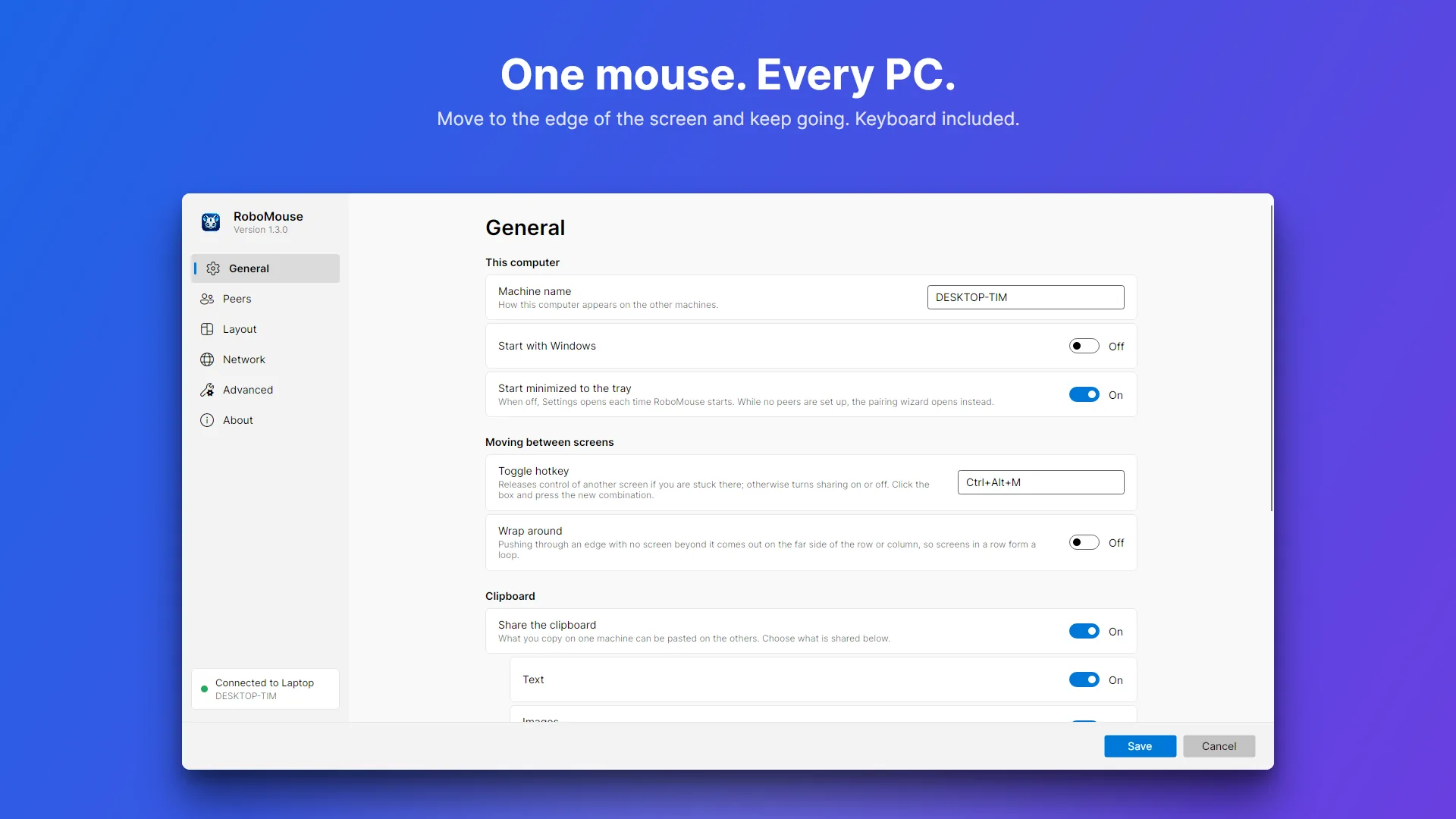
RoboMouse lets you share a single mouse and keyboard across two or more Windows PCs sitting side by side. Move the pointer to the edge of one screen and it carries on to the next machine, keyboard and clipboard along with it. There is nothing to plug in and no server to run: RoboMouse finds the other computers on your network and connects to them directly, encrypted end to end.
It is free and open source.
- GitHub: github.com/timothydodd/RoboMouse
- Download: latest release (version 1.3.0, Windows 10/11, no runtime to install)
- Microsoft Store: get it from the Store (version 1.3.0 is on its way there)
- License: MIT
Features
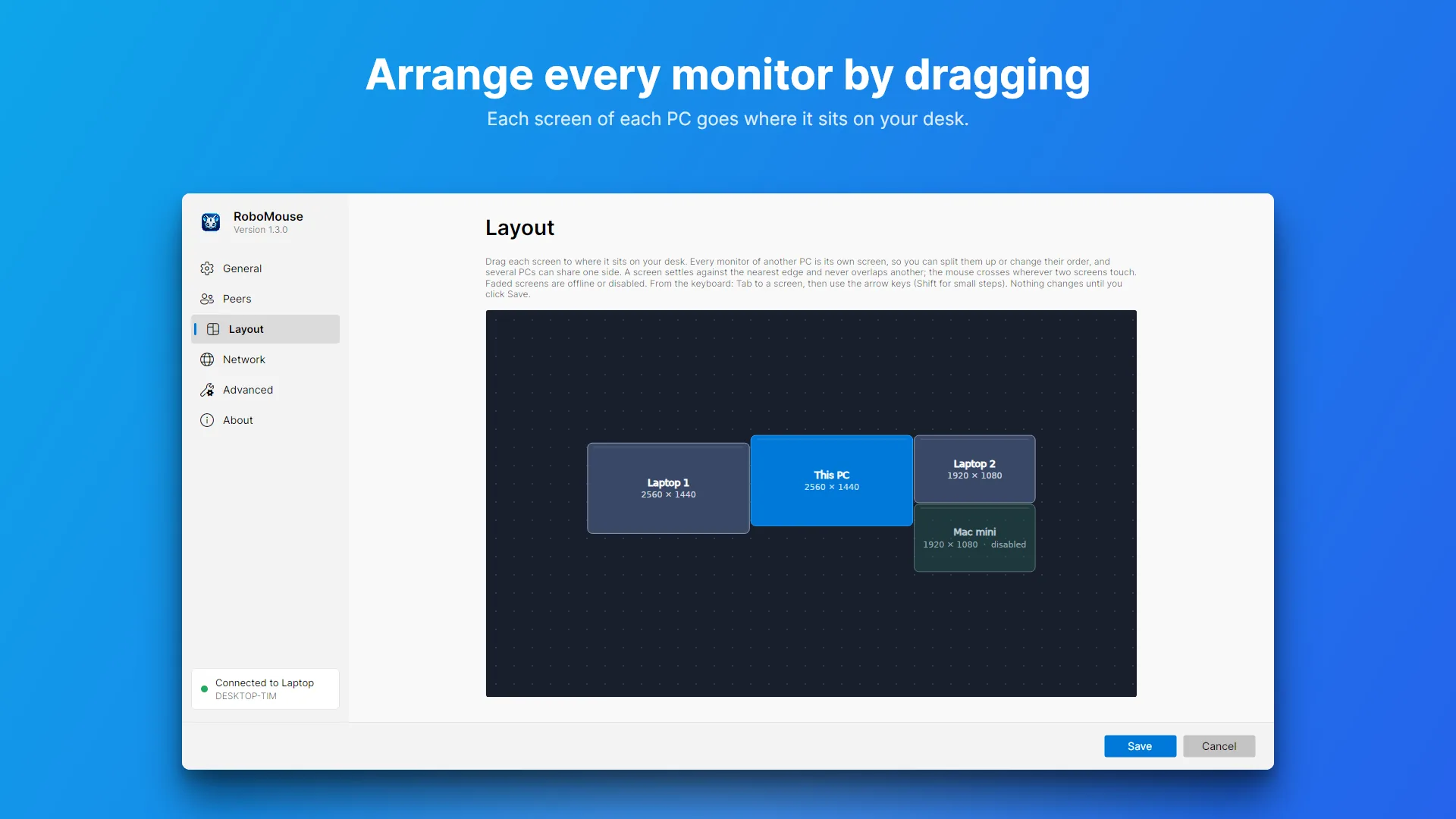
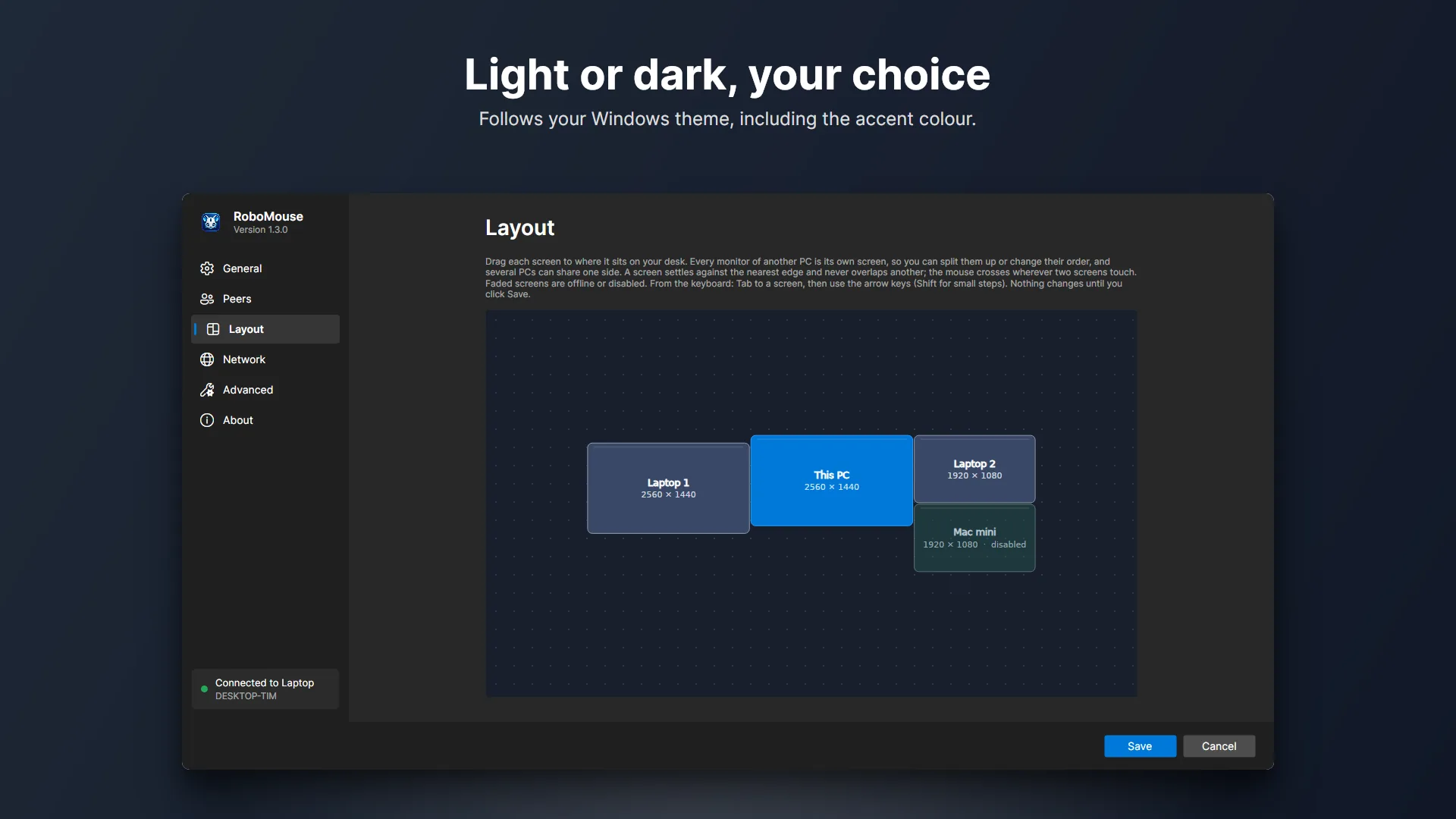
- Move between PCs like one desktop. Every monitor of every PC is placed on its own: drag each one to where it really sits, in any order, and several PCs can share one side. The cursor crosses wherever two screens touch. Each machine keeps its own pointer speed and keyboard layout, so it always feels native.
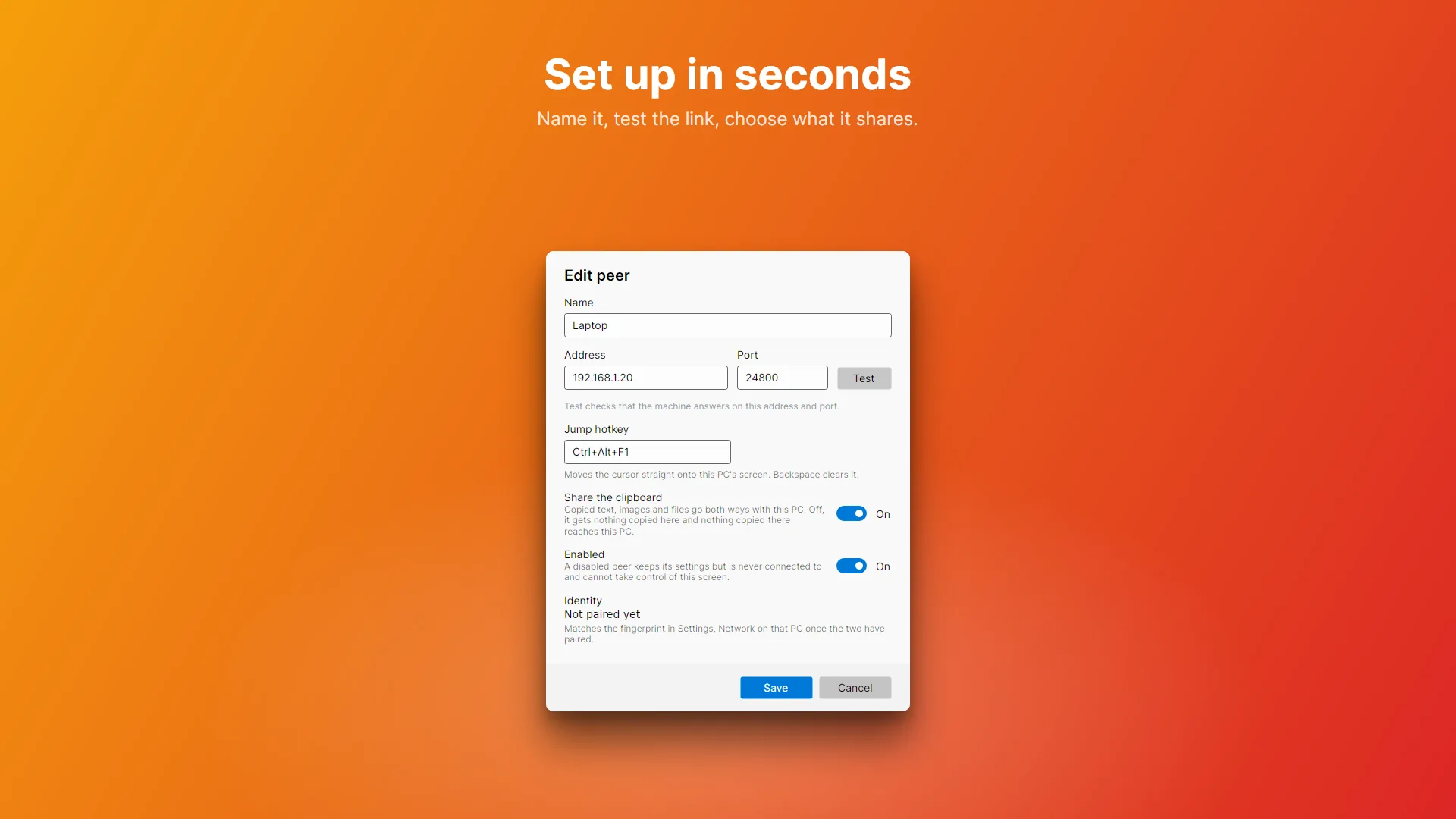
- Shared clipboard. Copy text or an image on one PC and paste it on another. Choose what is shared, set a size limit, and pick which PCs share it.
- Copy files across. Copy files on one machine and paste them in Explorer on the other. They stream directly between the two and only when you paste, so nothing transfers until you use it.
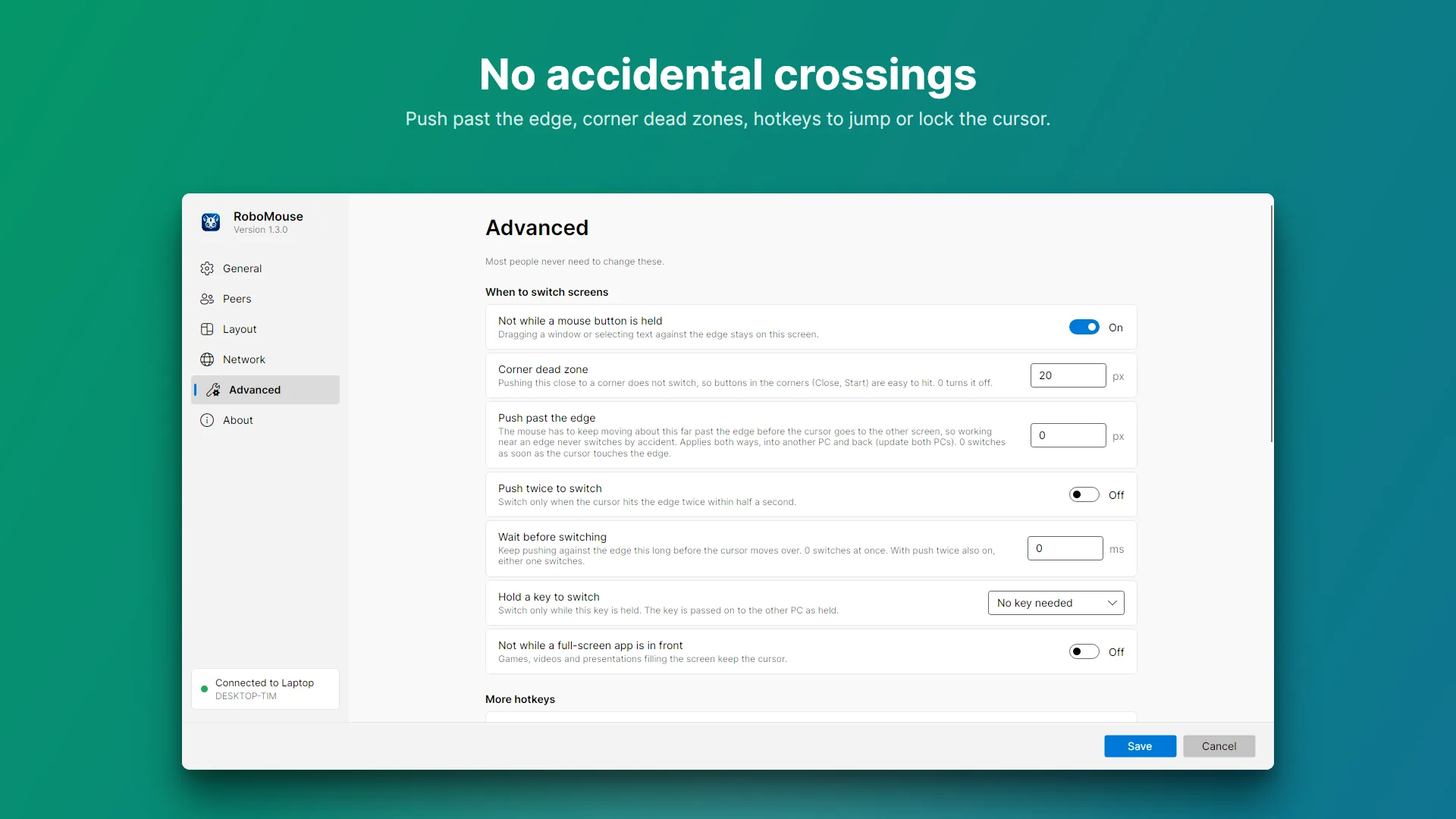
- No accidental crossings. Nothing switches while you drag a window, and the corners stay free for Close and Start. Optionally make the mouse push past the edge, push twice, wait a moment, hold a key, or stay put while a game or video is full screen.
- Hotkeys. Take control back or turn sharing off (Ctrl+Alt+M), jump straight to a PC (Ctrl+Alt+F1 to F4), or lock the cursor to its screen (Scroll Lock).
- Lock and sleep together. Lock all your PCs at once, and optionally have the others lock, start the screen saver, stay awake or turn their displays off along with the PC controlling them. Wake-on-LAN wakes a sleeping PC when you push the mouse towards it.
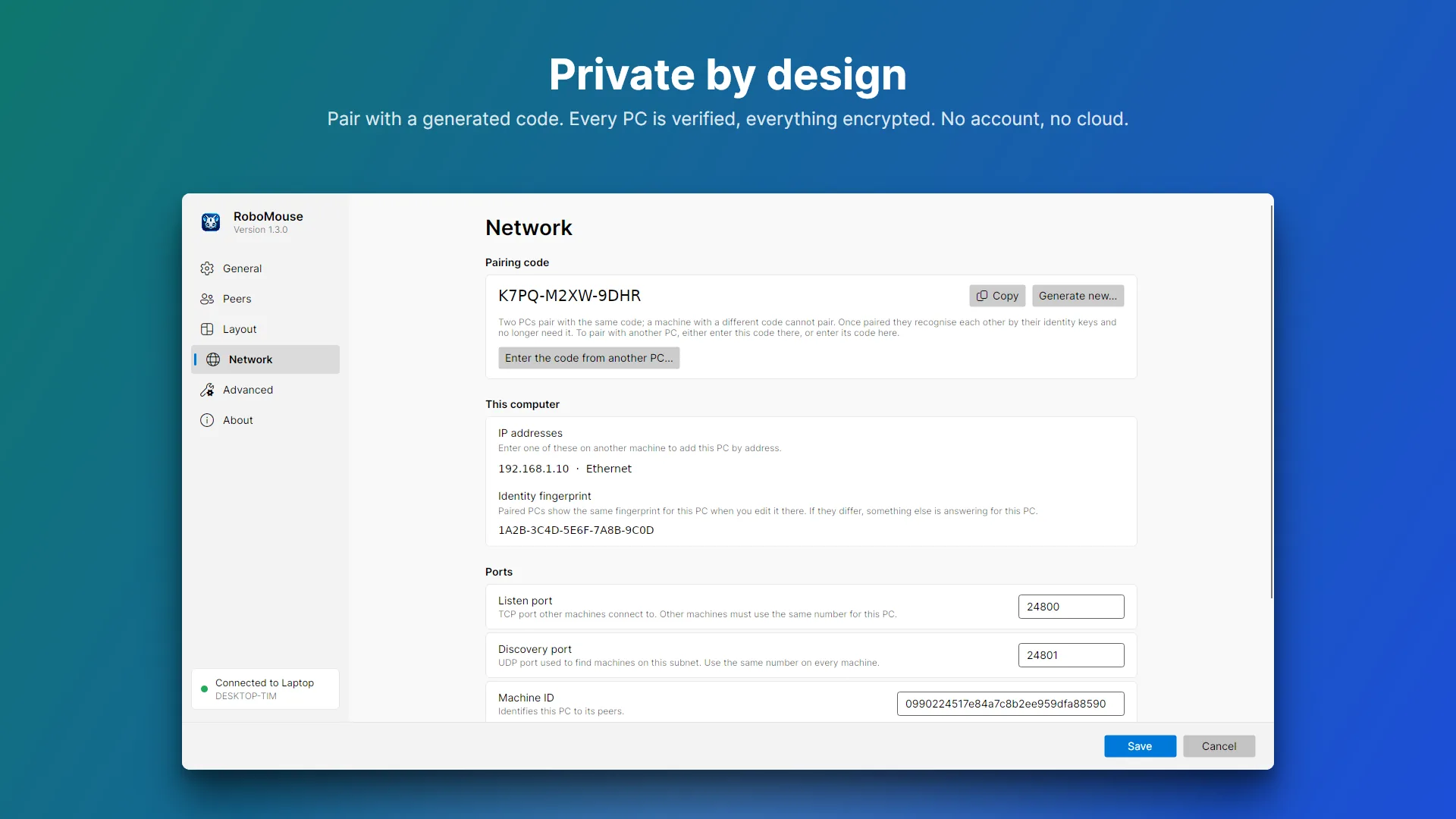
- Private by design. Every PC has its own identity key, a new machine must be approved before it can connect, and everything is encrypted (AES-256-GCM). Nothing is sent to the internet and there is no account to create.
- UAC prompts and the lock screen. An optional desktop service lets you click through UAC prompts, use windows running as administrator and unlock the PC from the other machine. See Store app or installer.
- Wrap-around edges. Optionally push through the far edge of a row or column of screens and come out on the other side.
- Stays out of the way. Runs from the system tray, and the icon’s border shows what it is doing: grey with no peers, green when connected, blue while controlling another PC, orange while being controlled.
- Nothing else to install. It starts instantly and needs no runtime or driver.
Screenshots
Getting started
- Install it on each PC. Download
RoboMouse-Setupfrom the latest release and run it (or grab the portable zip and runRoboMouse.App.exe). It lives in the system tray, and while it has no peers the pairing wizard opens at launch. - Share the pairing code. The wizard shows this PC’s name, IP address and pairing code. Both PCs need the same code: click Copy on one and enter it on the other. Codes are always generated by RoboMouse, so they are hard to guess.
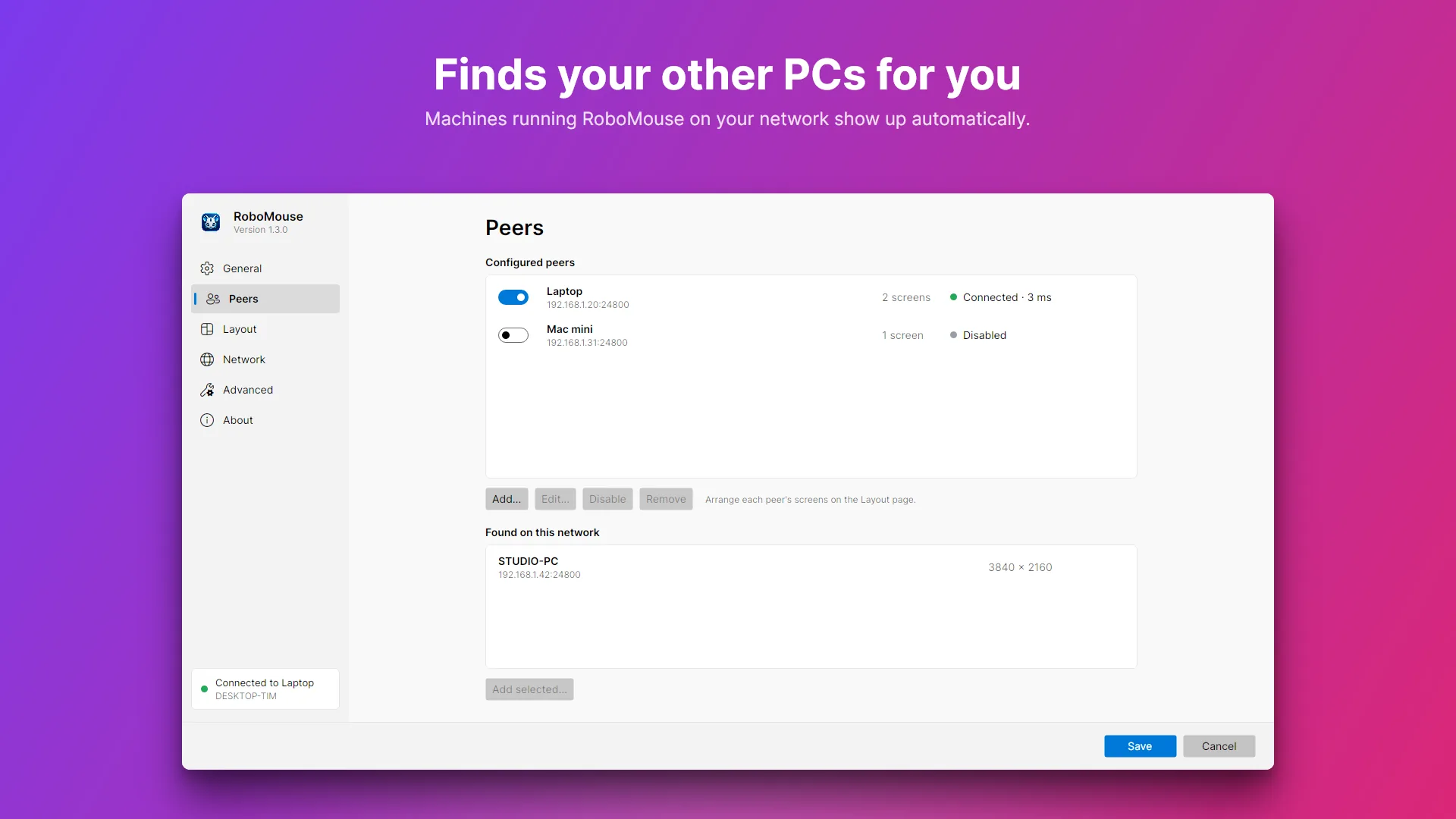
- Find the other PC. Pick it from the machines found on your network, or enter its IP address. Pick the side of your screen it sits on, then Finish.
- Approve it on the other PC. A machine it has never seen shows “name wants to connect”; click Allow. Nothing can control a PC until it has been allowed.
- Arrange your screens. Once connected, Settings > Layout shows each of the other PC’s monitors as its own screen. Drag each one to where it really sits.
- Use it. Move the mouse off that edge and you are controlling the other PC. Push back through it to return. Copy and paste works across machines straight away.
After the first connection the two PCs recognise each other by their identity keys and no longer need the code. If a PC is reinstalled it gets a new key and is refused until you click Pair again on the Peers page.
The toggle hotkey (Ctrl+Alt+M by default) turns sharing on or off, and always brings control back to the machine in front of you if a pointer gets stuck.
Upgrading? 1.3 uses a new network protocol, so update every PC: 1.3 cannot connect to 1.2 or earlier, and RoboMouse says so when it tries. Each PC’s screens start out where it was before; fine-tune them per monitor on the Layout page.
Store app or installer?
RoboMouse comes in two forms, and the difference is one feature.
RoboMouse never asks for administrator rights when it starts. The catch is a Windows safety rule: an ordinary app cannot click or type on a UAC prompt (“Do you want to allow this app to make changes?”), the lock screen, or a window that is running as administrator. So on its own, your remote mouse stops working the moment one of those appears. The tray icon tells you why, and the hotkey brings control back.
The RoboMouse Desktop Service fixes that. It is a small background service that clicks and types for you on those protected screens. Microsoft Store apps are not allowed to include a service like this, so it comes separately:
| You want | Install |
|---|---|
| Everything in one go | RoboMouse-Setup from GitHub: the app plus the service |
| The Store app, with automatic updates | The Store app, then RoboMouse-Service-Setup from GitHub if you want UAC and lock screen control |
| No install at all | The portable zip (no service) |
Note for Store users: the Store app is still on version 1.0 while 1.3.0 makes its way through Microsoft’s review. The service only works with 1.1.0 or later, and 1.3.0 cannot connect to older versions, so until the Store update lands, use RoboMouse-Setup from GitHub on every PC.
Both installers are attached to every GitHub release alongside a SHA256SUMS.txt. Only the PC being controlled needs the service.
Installing the service changes nothing until you switch it on: open Settings > Advanced on the controlled PC, turn on Control UAC prompts and the lock screen, and approve the one UAC prompt. The card only shows up when the service is installed.
Is it safe? The service has more power than a normal app, so it is deliberately limited:
- It only listens to your own RoboMouse app, signed in as you. Nothing else on the PC can use it.
- It can only click and type. It cannot watch your keyboard, so it never sees your password on the sign-in screen.
- It never touches the network. The normal app checks and decrypts everything first.
- It only runs while RoboMouse is running, and you can switch it off again in Settings at any time.
The technical details are in the desktop service documentation.
How it works
When your pointer crosses an edge, the PC you are sitting at sends your mouse movement and key presses to the other PC, which plays them back as if the mouse were plugged into it. That is why the pointer feels right on every machine: each one uses its own speed settings and keyboard layout. Push the cursor back through the edge it came in on and control returns to you. Everything travels directly between your PCs over a connection that each side proves with its own identity key, encrypted with AES-256-GCM. Developers can read more in the technical docs.
Privacy
RoboMouse is designed so your data never leaves the computers you pair.
- Input and clipboard content (mouse movement, key presses, copied text, images and files) is sent only to the machines you have paired, over your local network, and only while you are controlling that machine or have copied something to share. It is encrypted in transit.
- Discovery broadcasts on your local network contain the computer’s name, a random RoboMouse machine id, its screen size, the port RoboMouse listens on and its public identity key, so other instances on the same network can list it.
- Settings (the pairing code and peer list) are stored in a file on your own computer, next to its identity key, which is encrypted for your Windows account. A diagnostic log of connection events is kept alongside it; it never contains keystrokes or clipboard content.
- Update check. The GitHub download checks once a day for a new release with a plain request to GitHub that carries nothing about you. The Store version leaves updates to the Store. You can turn it off under Settings > About.
- RoboMouse does not send any data to the developer, to Microsoft, or to any server on the internet. It has no analytics, telemetry, accounts or advertising.
The full privacy policy is on GitHub. Questions can be raised on the GitHub issues page.
Known limitations
- Elevated windows and UAC prompts need the desktop service. Without it, input stops at UAC prompts, the lock screen and windows running as administrator; the tray status says so and the hotkey always brings control back. See Store app or installer.
- Sign-in after a reboot. Even with the service, nothing can connect until someone has signed in, and Ctrl+Alt+Del cannot be sent remotely.
- Separate networks. PCs only find each other automatically on the same network; otherwise add the machine by IP address.
- Pasting files. Explorer, Outlook, Teams and Office accept pasted files; apps that want plain file paths (such as VS Code) do not. Paste into a folder first.