


Artificial intelligence isn’t just for supercomputers anymore! With tools like Ollama and the new DeepSeek-R1 AI model, you can harness the power of advanced language models directly on your Raspberry Pi. In this guide, we’ll walk you through the steps to set up DeepSeek-R1 on your Raspberry Pi hardware. Whether you’re a seasoned Pi enthusiast or just starting out, this tutorial will help you get up and running quickly.
Prerequisites
Before diving in, ensure you have the following:
- A Raspberry Pi (preferably 4B or higher) with at least 4GB of RAM for smoother performance.
- A microSD card (16GB or larger) with a fresh copy of Ubuntu Server (headless) or Raspberry Pi OS Lite installed.
- SSH access to your Raspberry Pi. If you’re new to setting up a Raspberry Pi, check out my NFS server guide for tips on getting started.
Step 1: Prepare Your Raspberry Pi
Install a Fresh Operating System
- Install either Ubuntu Server or Raspberry Pi OS Lite onto your Raspberry Pi’s microSD card.
- Boot up your Pi and connect it to your network.
- Use SSH to log into your Raspberry Pi.
Update Your System
Before proceeding, ensure your system is up-to-date. Run the following commands:
sudo apt update
sudo apt upgrade -y
Verify a 64-bit OS
Ollama requires a 64-bit operating system. Check your OS version with:
uname -m
If the output is aarch64, you’re good to go. If not, you’ll need to install a 64-bit OS.
Step 2: Install Ollama on Your Raspberry Pi
Install Curl
First, install curl if it’s not already installed:
sudo apt install curl -y
Download and Run the Ollama Installer
Use the following command to download and execute the Ollama installation script:
curl -fsSL https://ollama.com/install.sh | sh
Verify Installation
Check that Ollama installed correctly by running:
ollama --version
You should see the installed version number as confirmation.
Step 3: Run the DeepSeek-R1 Model
The DeepSeek-R1 model is an advanced language AI model that you can easily run using Ollama. Here’s how:
Download and Run DeepSeek-R1
Run the following command to download and start the DeepSeek-R1 model:
ollama run deepseek-r1:1.5b
Ollama will automatically download the model if it’s not already installed. The 1.5b refers to the size of the model, which balances performance and efficiency.
Interact with the Model
Once the model is running, you can start asking it questions! To get the best experience, use the /? command to see available options and features. If you encounter any issues or unexpected behavior, use /clear to reset the session context.
A Note About Raspberry Pi Hardware
While it’s exciting to run AI models like DeepSeek-R1 on a Raspberry Pi, it’s important to note that Raspberry Pi hardware isn’t ideal for such tasks due to its lack of a GPU. Running large AI models without GPU acceleration can be slow and may strain the Pi’s limited resources. However, it’s still a fun and rewarding project for enthusiasts who enjoy tinkering with cutting-edge technology on affordable hardware!
If you’re looking for better performance or working on larger-scale projects, you can also run this setup on other hardware with more robust specifications, such as a desktop or server with a dedicated GPU.
Inexpensive Hardware Alternatives
High-end GPUs can be quite expensive, but there are cost-effective hardware options that can deliver better performance for AI tasks without breaking the bank. Here are a few alternatives:
NVIDIA Jetson Orin Nano
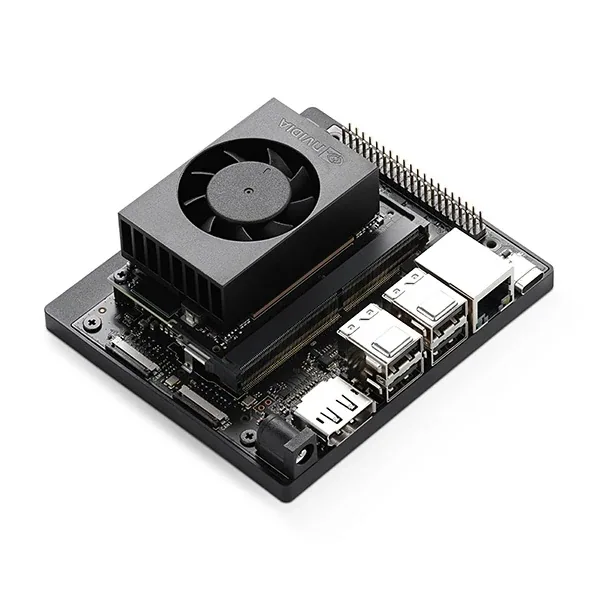
- Price Range: $240 to $340
- Overview: The NVIDIA Jetson Orin Nano is a compact and powerful option for running AI models. Make sure to get the latest version, as supplies can be limited. You may need to shop around.
- Highlight: Known as the most affordable generative AI supercomputer.
- Learn More: Jetson Orin Nano Super Developer Kit
Apple Mac Mini (M4)
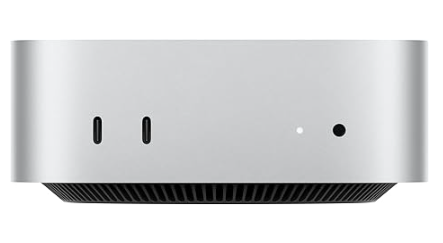
- Price Range: Varies, but often considered a good value for the performance.
- Overview: The Apple Mac Mini is an excellent choice for running LLMs thanks to its powerful M-series chips and efficient performance.
- Highlight: A good balance of price and capability for enthusiasts and developers.
- Shop Here: Amazon Link
Troubleshooting
Here are a few tips if you run into trouble:
- Low Memory Issues: If the Raspberry Pi struggles with performance, consider adding a swap file or upgrading to a Pi with more RAM.
- Network Problems: Ensure your Pi is connected to a stable network for downloading the model.
- Reinstallation: If all else fails, rerun the Ollama installer script to ensure everything is set up correctly.
Final Thoughts
Running AI models like DeepSeek-R1 on Raspberry Pi hardware demonstrates just how accessible AI technology has become. With Ollama’s easy-to-use platform, you can experiment with cutting-edge language models from the comfort of your home. Whether you’re exploring natural language processing, building a chatbot, or just tinkering for fun, the possibilities are endless.
And remember, you can achieve even better results by running this on more powerful hardware! Have questions or ideas? Drop a comment below!